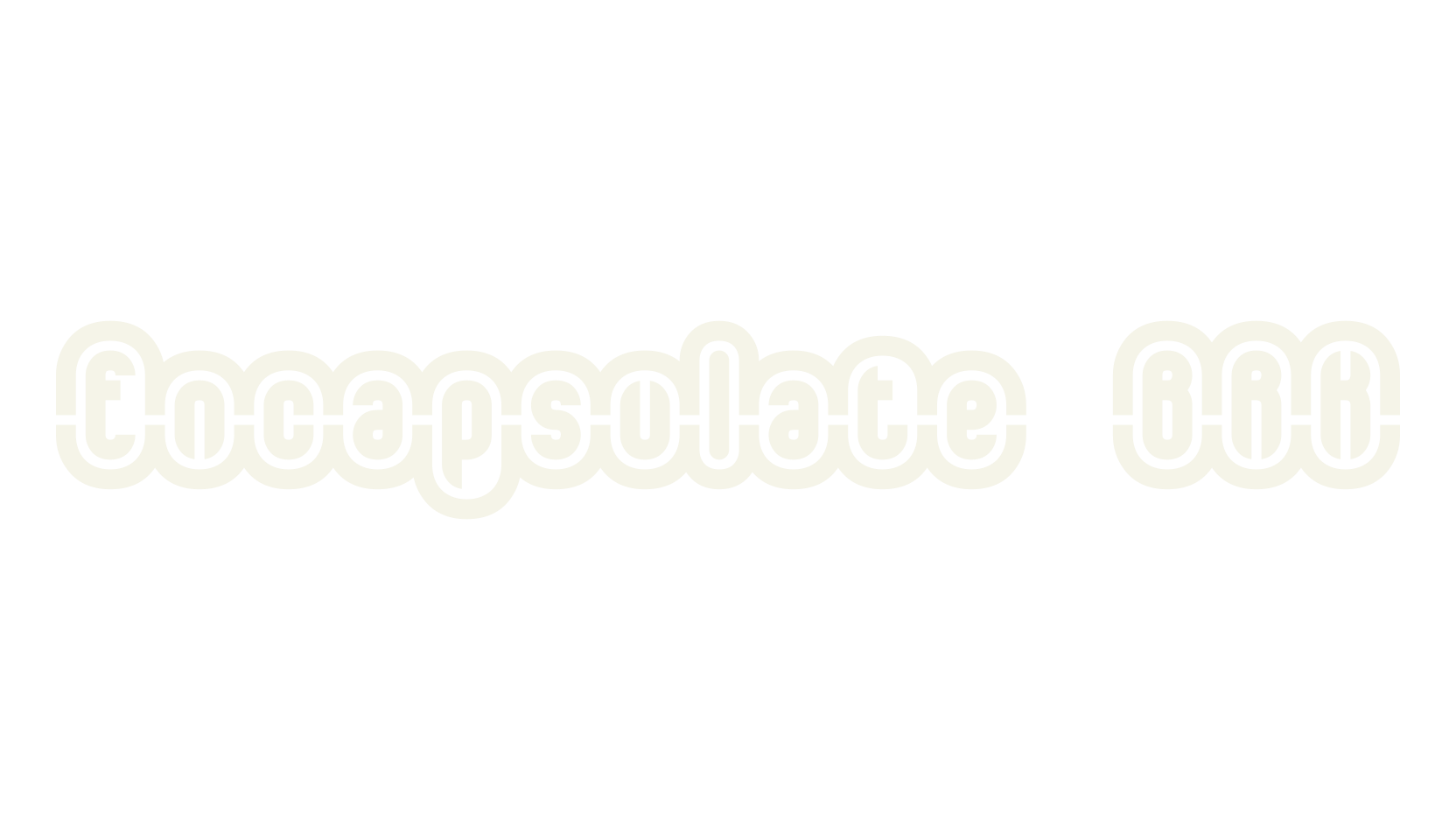
When using Encapsulate (not the plain version), you can 'cap' the sides of your text/character by using [ or ] ex.
Encapsulate /search?q=Encapsulate <- just the right and left are 'capped'
ex. [E[n[c[a[p[s[u[l[a[t[e] <- each character is 'capped'
There are some alternative extra characters included in this font.
KEY /search?q=KEY
EXTRA CHARACTER = ACTUAL CHARACTER = ALT# CODE
Cap Blank = È = ALT+0200 not used in Encapsulate Plain /search?q=not used in Encapsulate Plain
Low Blank = É = ALT+0201 not used in Encapsulate Plain /search?q=not used in Encapsulate Plain
J = Ê = ALT+0202
L = Ë = ALT+0203 b = Ì = ALT+0204 d = Í = ALT+0205 h = Î = ALT+0206 p = Ï = ALT+0207 q = Ð = ALT+0208
To type the extra characters, Press and Hold the ALT key, then on the Number Pad type in the 4 numbers. When you release the
ALT key the character will appear.